
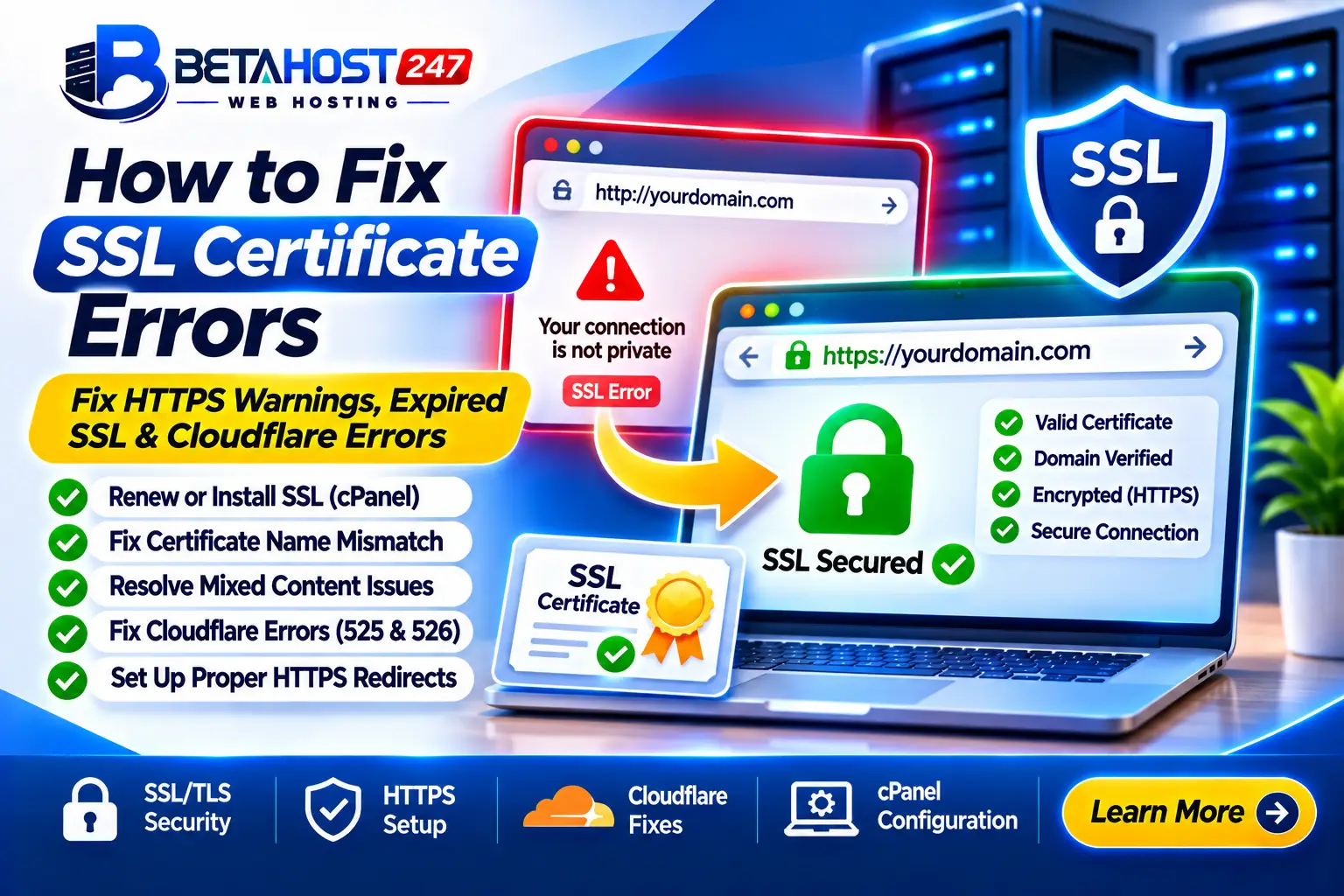
How to Fix SSL Certificate Errors and HTTPS Problems on Your Website
Have you ever opened your website and received a warning saying “Your connection is not private” or “This site can’t provide a secure connection”?
These errors can prevent visitors from accessing your website normally and may affect customer confidence.
SSL certificate errors are common hosting problems. They can occur because of expired certificates, incorrect domain configuration, missing certificate chains, HTTPS redirects or Cloudflare SSL settings.
The good news is that many SSL problems can be diagnosed and resolved without moving your website to another hosting provider.
In this guide, you’ll learn how to fix SSL certificate errors, troubleshoot HTTPS problems and configure SSL correctly using cPanel and Cloudflare.
What Is an SSL Certificate?
An SSL certificate, more accurately called a TLS certificate in modern web security, helps browsers establish encrypted HTTPS connections with websites.
When a visitor opens:
https://example.com
the browser checks the certificate presented by the website’s server.
Among other things, it verifies that:
- The certificate is valid for the requested hostname.
- The certificate hasn’t expired.
- The certificate chains to a trusted certificate authority.
- The server can complete the TLS handshake.
If these checks fail, the browser may display a security warning or block the connection.
SSL and TLS are often used interchangeably in web hosting discussions, although modern HTTPS uses TLS.
Why Is SSL Important for Your Website?
A correctly configured HTTPS connection protects data in transit between visitors and the website.
This is particularly important for websites handling:
- Login credentials
- Contact forms
- Customer information
- Online transactions
- Administrative sessions
- Account registration
HTTPS also helps browsers distinguish encrypted connections from unencrypted HTTP connections.
However, an SSL certificate doesn’t guarantee that a website is legitimate, malware-free or secure against every attack.
It is one important part of website security.
Common SSL Certificate Errors
Different browsers display different error messages.
Some of the most common include:
| Error | Possible Cause |
|---|---|
| Your connection is not private | Certificate validation failure |
| NET::ERR_CERT_DATE_INVALID | Expired or not-yet-valid certificate, or incorrect device clock |
| NET::ERR_CERT_COMMON_NAME_INVALID | Certificate doesn’t match the hostname |
| NET::ERR_CERT_AUTHORITY_INVALID | Untrusted certificate authority or incomplete chain |
| ERR_SSL_PROTOCOL_ERROR | TLS negotiation or server configuration problem |
| ERR_TOO_MANY_REDIRECTS | Conflicting redirect configuration |
| Mixed Content warning | HTTPS page loads resources over HTTP |
Each error requires a different investigation.
Avoid repeatedly reinstalling certificates without identifying the actual problem.
1. Check Whether Your SSL Certificate Has Expired
An expired certificate is one of the most straightforward SSL problems to diagnose.
Certificates have defined validity periods.
Once a certificate expires, browsers may stop trusting it.
How to Check Certificate Expiration
Open your website using HTTPS.
In most browsers, you can inspect the connection or certificate information through the site controls or security details.
Check:
- Certificate issuer
- Validity dates
- Hostname coverage
- Certificate chain
You can also use an online testing service such as:
https://www.ssllabs.com/ssltest/
The SSL Labs server test can help identify certificate and TLS configuration issues on publicly accessible websites.
How to Fix an Expired Certificate
If your hosting provider supports automatic certificate issuance:
- Log in to cPanel.
- Open SSL/TLS Status, if available.
- Find the affected domain.
- Check its certificate status.
- Run AutoSSL if the interface and your permissions allow it.
- Wait for issuance or renewal to complete.
- Test HTTPS again.
Some cPanel environments manage AutoSSL automatically without providing customers a manual Run AutoSSL button.
If renewal fails, investigate the reported validation error or contact your hosting provider.
2. Fix SSL Certificate Name Mismatch Errors
A certificate name mismatch occurs when the certificate doesn’t cover the hostname you’re visiting.
For example, a certificate valid for:
example.com
may not necessarily cover:
www.example.com
Similarly, a certificate for the main domain may not cover every subdomain.
How to Resolve the Problem
Check which hostnames the certificate covers.
Then confirm that:
- The domain points to the correct hosting environment.
- The intended hostname is included in the certificate.
- The server presents the correct certificate.
- DNS records don’t point to an old server.
If necessary, request or install a certificate that includes all required hostnames.
Wildcard certificates can cover appropriate subdomains, but their coverage has specific rules.
For example, *.example.com doesn’t automatically cover example.com itself or multiple levels of subdomains.
3. Check Your Domain’s DNS Configuration
SSL certificate problems sometimes originate from incorrect DNS records.
Suppose you migrate your website to another hosting server but leave an old A record active.
Some visitors may reach the previous server, which could present an outdated or incorrect certificate.
What to Check
Review:
- A records
- AAAA records
- CNAME records
- Active nameservers
- CDN configuration
- Hosting server IP address
If you’re using cPanel, the Zone Editor may help you inspect DNS records when your hosting server manages authoritative DNS.
If you’re using Cloudflare or another external DNS provider, make changes at that provider instead.
Remember that DNS caches may temporarily return older answers after a change.
4. Fix Missing or Incomplete SSL Certificate Chains
Browsers need to establish trust between the website’s certificate and a recognized certificate authority.
Intermediate certificates help create this chain of trust.
If the server doesn’t present the required intermediates, some clients may report certificate errors.
How to Fix Certificate Chain Problems
If you manually installed a certificate:
- Verify the certificate was issued for your domain.
- Obtain the appropriate intermediate certificates from the issuer.
- Install the certificate chain according to your server’s documentation.
- Restart or reload the relevant web server service if required.
- Test the HTTPS configuration.
On managed cPanel hosting, certificate-chain handling is often automated.
Contact your provider if you cannot correct the chain through your account interface.
5. Fix Mixed Content Errors
Mixed content occurs when an HTTPS webpage requests certain resources over HTTP.
Examples include:
- Images
- JavaScript files
- CSS stylesheets
- Fonts
- Embedded content
For example, your HTTPS page may contain:
<img src="http://example.com/image.jpg" alt="Example">The image is being requested through an unencrypted HTTP URL.
Browsers may upgrade, block or warn about mixed-content requests depending on the resource and browser behavior.
How to Fix Mixed Content
- Open your website using HTTPS.
- Open your browser’s Developer Tools.
- Check the Console for mixed-content warnings.
- Identify the affected resource URLs.
- Replace HTTP references with HTTPS URLs where supported.
- Clear relevant application and CDN caches.
- Test the page again.
For websites with many stored URLs, you may need to update database content.
Always create a backup before performing bulk database replacements.
Don’t assume that every third-party HTTP resource supports HTTPS.
If it doesn’t, replace or remove that resource.
6. Fix HTTPS Redirect Loops
A redirect loop occurs when a browser repeatedly receives redirects without reaching the intended page.
For example:
HTTP → HTTPS → HTTP → HTTPSEventually, the browser may display:
ERR_TOO_MANY_REDIRECTS
This can happen when multiple systems enforce conflicting redirect rules.
Possible sources include:
- Web server configuration
.htaccess- Application settings
- cPanel redirects
- Cloudflare settings
- Load balancer configuration
How to Troubleshoot
Review all places where HTTP-to-HTTPS redirects are configured.
Confirm that each component understands whether the original visitor connection used HTTPS.
Avoid enabling several conflicting redirect mechanisms without checking how they interact.
You can inspect redirect headers using:
curl -I http://example.comAnd:
curl -I https://example.comFor a complete redirect chain:
curl -IL --max-redirs 10 https://example.comReplace the example domain with your actual website.
Be aware that some applications respond differently to HEAD requests, so a GET-based test may be needed.
7. Fix Cloudflare SSL Errors
If your website uses Cloudflare, HTTPS involves connections between the visitor and Cloudflare and, depending on the configuration, between Cloudflare and your origin server.
Cloudflare provides several SSL/TLS modes.
Flexible
Cloudflare uses HTTPS between the visitor and Cloudflare, but may connect to the origin using HTTP.
This mode doesn’t provide end-to-end encryption and can contribute to redirect loops when the origin forces HTTPS.
Full
Cloudflare uses HTTPS to the origin but doesn’t validate the origin certificate in the same way as Full (strict).
Full (Strict)
Cloudflare uses HTTPS and validates the origin certificate against its requirements.
Full (strict) is generally the preferred configuration when the origin server has an appropriate valid certificate.
How to Check Cloudflare SSL Settings
- Log in to Cloudflare.
- Select your domain.
- Open SSL/TLS.
- Review the encryption mode.
- Confirm the origin server has an appropriate certificate.
- Check HTTPS redirect rules.
- Test the website.
Don’t switch SSL modes randomly to hide errors.
Investigate the origin certificate and connection configuration.
8. Understand Cloudflare Error 525
Cloudflare error 525 indicates that the SSL handshake between Cloudflare and the origin server failed.
Possible causes include:
- Origin TLS configuration problems
- Unsupported protocol or cipher configuration
- Server-side handshake failures
- Incorrect server name indication handling
- Connectivity or security filtering issues
How to Troubleshoot Error 525
Check the origin server’s TLS configuration and logs.
Confirm the server can accept HTTPS connections.
If necessary, ask your hosting provider to investigate the origin TLS handshake.
Error 525 isn’t necessarily caused by an expired certificate.
9. Understand Cloudflare Error 526
Cloudflare error 526 generally indicates that Cloudflare couldn’t validate the origin certificate under a mode that requires validation, commonly Full (strict).
Possible reasons include:
- Expired certificate
- Hostname mismatch
- Invalid certificate chain
- Untrusted certificate authority
- Other certificate validation failures
How to Fix Error 526
Install or renew an appropriate certificate on the origin server.
Confirm the certificate covers the requested hostname and has a valid chain.
Then test the connection again.
Avoid weakening certificate validation as a permanent substitute for fixing the origin certificate.
10. Fix SSL Errors After Changing Hosting Providers
Website migration can introduce SSL problems if the destination server isn’t configured correctly.
Before changing DNS, verify that the new hosting environment has:
- Correct virtual host configuration
- Required domain names
- Appropriate SSL certificates
- Compatible TLS settings
- Working HTTPS redirects
After migration, check both the root domain and www hostname.
Also test important subdomains separately.
For more information, see our article:
How to Migrate Your Website to Another Hosting Provider Without Losing Data
11. Fix AutoSSL Validation Failures in cPanel
AutoSSL may fail if the certificate authority cannot validate domain control.
Common causes include:
- Domain points to the wrong server.
- DNS records are inconsistent.
- HTTP validation requests are blocked.
- The requested hostname isn’t configured correctly.
- The domain is behind a proxy that interferes with validation.
- Certificate authority restrictions apply.
- DNS-based CAA records don’t authorize the intended issuer.
What You Should Do
Check the AutoSSL error details.
Verify that the domain resolves correctly and that the hosting environment is configured to serve it.
If your DNS is managed externally, inspect the authoritative records.
Contact your hosting provider when the problem involves server-level configuration or certificate issuance.
12. Check Your Device’s Date and Time
Sometimes a certificate warning is caused by an incorrect clock on the visitor’s device.
TLS certificate validation depends partly on time.
If your computer’s date is significantly incorrect, a valid certificate may appear expired or not yet valid.
Check that your device’s date, time and time zone are correct.
Then reload the website.
This is particularly useful when one device reports a certificate error while other devices can access the website normally.
13. Check Whether HTTPS Is Enabled for Every Required Subdomain
A certificate installed for your main domain doesn’t necessarily secure every subdomain.
For example:
example.com
www.example.com
shop.example.com
billing.example.com
Each hostname must be covered by an appropriate certificate.
Check the certificates installed on all publicly accessible services.
This is especially important when different subdomains use different servers or hosting providers.
14. Test Your Website After Fixing SSL
Once you’ve made the necessary changes, verify that HTTPS works correctly.
Check:
- The homepage loads over HTTPS.
- The certificate is valid.
- The certificate covers the correct hostname.
- HTTP redirects behave as intended.
- No redirect loop occurs.
- Images and scripts load correctly.
- Important subdomains work.
- Login and checkout pages function.
- Browser security warnings have disappeared.
- Cloudflare and origin connections work as expected.
Test using more than one browser or network when appropriate.
A successful homepage test doesn’t guarantee that every subdomain and application endpoint is correctly configured.
Does SSL Affect SEO?
HTTPS is one of the signals Google has used in ranking systems, but it is not a substitute for useful content, good website performance and other SEO fundamentals.
More importantly, certificate errors can prevent visitors and crawlers from accessing your website normally.
When migrating from HTTP to HTTPS, maintain consistent redirects and canonical URLs.
Also review your sitemap and internal links.
Avoid having multiple accessible versions of the same content without appropriate canonicalization.
Free SSL vs Paid SSL Certificates
Both free and paid publicly trusted certificates can provide strong TLS encryption when correctly configured.
The difference is not simply that paid certificates provide stronger encryption.
Depending on the product and provider, paid certificates may include additional commercial support or service features.
For many ordinary websites, an appropriately configured free certificate is sufficient.
The most important factors are correct installation, trusted issuance, timely renewal and secure server configuration.
SSL Certificates and Web Hosting at Beta Host Limited
Beta Host Limited provides web hosting services for individuals, businesses, developers and resellers.
Selected hosting packages include SSL-related features that help customers secure their websites using HTTPS.
You can explore the available hosting options below.
Shared Hosting
WordPress Hosting
Reseller Hosting
VPS Hosting
Before purchasing, review the package specifications and available SSL features.
If you’re experiencing an SSL issue on a Beta Host server, contact technical support with the affected hostname and exact error message.
Frequently Asked Questions
Why does my website say the connection is not private?
The browser may be unable to validate the website’s certificate. Possible causes include expiration, hostname mismatch, an untrusted issuer or an incomplete certificate chain.
How do I fix an expired SSL certificate?
Renew or replace the certificate through your hosting control panel or certificate provider. If your hosting account supports AutoSSL, review its renewal status.
Is free SSL secure?
A properly configured free certificate from a trusted certificate authority can provide strong HTTPS encryption.
Can DNS cause SSL certificate errors?
Yes. Incorrect DNS records can direct visitors to a server presenting the wrong certificate.
Why is my SSL certificate valid but my website still shows a warning?
Possible causes include mixed content, redirects, incorrect hostname coverage or application-level security issues.
What is the difference between Cloudflare SSL error 525 and 526?
Error 525 indicates a TLS handshake failure between Cloudflare and the origin. Error 526 generally indicates an origin certificate validation failure.
How do I enable HTTPS in cPanel?
Install or confirm an appropriate SSL certificate, then configure the website’s HTTPS redirect using supported cPanel, application or server settings.
Can SSL certificate errors affect website visitors?
Yes. Browsers may display warnings or prevent users from accessing affected pages.
Does SSL automatically protect my website from hackers?
No. HTTPS protects data in transit but doesn’t replace application updates, access controls, secure passwords or other security measures.
Can I install SSL for multiple subdomains?
Yes, provided the certificate covers the required hostnames and is installed on the relevant servers.
Final Thoughts
SSL certificate errors can make a website appear unsafe or prevent visitors from accessing it.
The correct solution depends on the underlying cause.
Start by checking the certificate’s validity, hostname coverage and trust chain.
Then investigate DNS, HTTPS redirects, mixed content and Cloudflare configuration where applicable.
Avoid disabling security checks simply to make an error disappear.
A properly configured SSL certificate, combined with secure hosting practices, helps protect website connections and maintain visitor confidence.
Need hosting with SSL support? Explore Beta Host Limited’s Web Hosting Services and choose a package that matches your website’s requirements.