
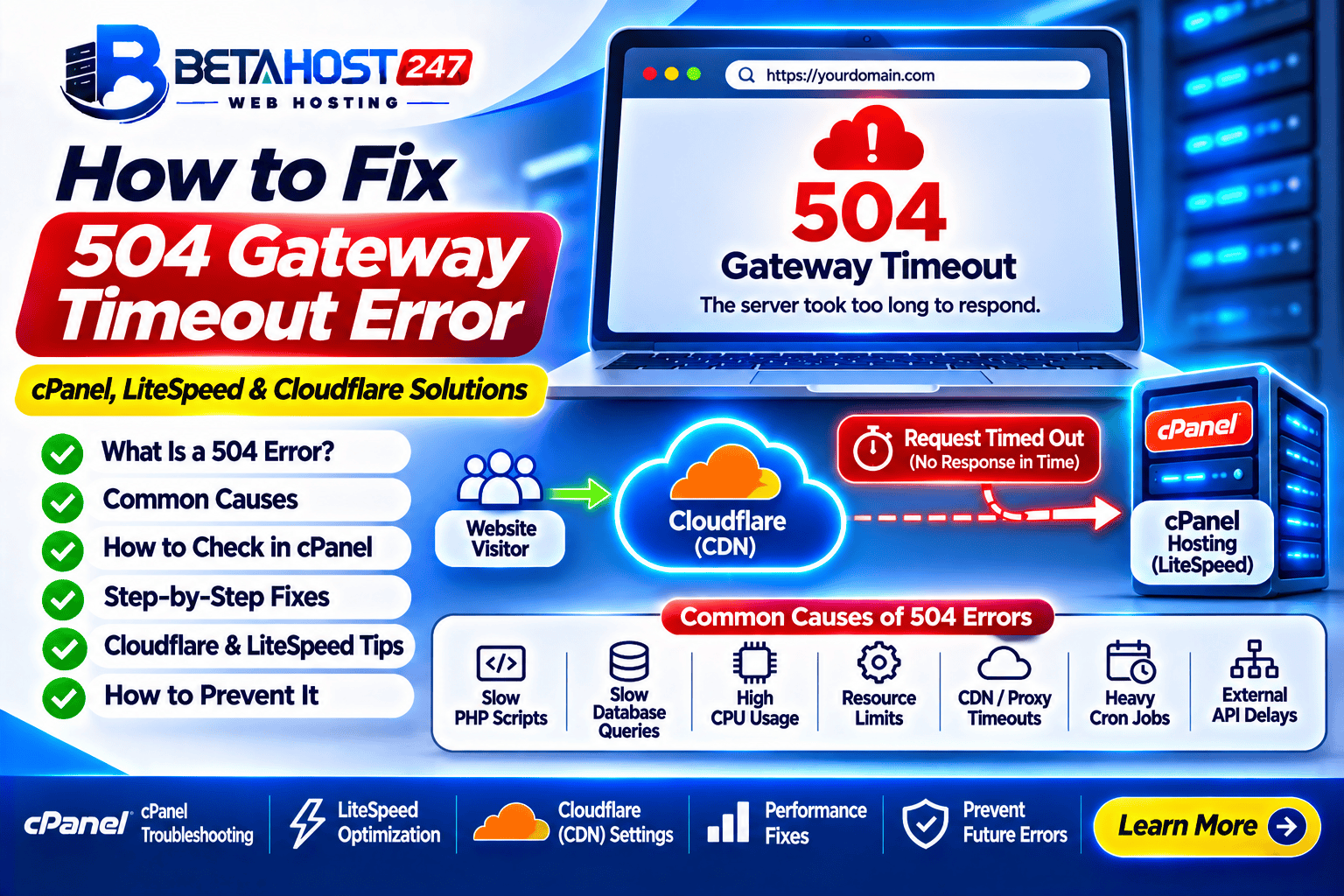
How to Fix 504 Gateway Timeout Error in cPanel Hosting: Causes and Solutions
Have you ever opened your website and received a 504 Gateway Timeout error instead of the page you expected?
The website may have been working perfectly a few minutes earlier. Suddenly, visitors cannot access certain pages, customers cannot complete transactions or your application stops responding.
A 504 error can be frustrating because the problem isn’t always obvious.
Sometimes it originates from the hosting server. In other cases, a reverse proxy, CDN, slow PHP application or database operation is responsible.
If your website uses cPanel hosting, LiteSpeed, Apache, Cloudflare or another reverse proxy, understanding how these systems communicate is essential for troubleshooting the problem.
In this guide, we’ll explain what a 504 Gateway Timeout error means, its common causes, how to investigate it using cPanel and what you can do to prevent it from happening again.
What Is a 504 Gateway Timeout Error?
A 504 Gateway Timeout is an HTTP status code indicating that a server acting as a gateway or proxy didn’t receive a timely response from another server it needed to contact.
For example, your website may use Cloudflare as a reverse proxy.
When a visitor requests a page, Cloudflare may need to contact your hosting server to retrieve the content.
If the required upstream response doesn’t arrive within the applicable timeout, a 504 error may occur.
A simplified request flow looks like this:
Website Visitor
       |
       v
CDN / Reverse Proxy
       |
       v
Hosting Server
       |
       v
PHP Application
       |
       v
Database
A timeout can occur at different points in this process.
The important thing to understand is that a 504 error doesn’t automatically mean your hosting server is offline.
The server may be running but responding too slowly to a particular request.
What Causes a 504 Gateway Timeout Error?
Several conditions can lead to gateway timeout errors.
The most common include:
- Slow PHP scripts
- Excessive CPU usage
- Overloaded hosting resources
- Slow database queries
- Unresponsive upstream services
- Incorrect proxy configurations
- Network connectivity problems
- Excessive bot traffic
- Heavy background operations
- CDN-to-origin communication problems
Let’s examine these causes individually.
1. Slow PHP Scripts
PHP applications generate dynamic website content.
When someone visits a dynamic page, the hosting server may execute PHP code, retrieve information from a database and generate the response.
If the application takes too long to complete, an upstream gateway may stop waiting.
Common PHP Problems
- Inefficient loops
- Large file-processing operations
- Repeated database queries
- Slow external API calls
- Expensive report generation
- Unnecessary background processing
For example, a PHP script that generates a large financial report during a normal page request may take longer than the proxy’s timeout allowance.
How to Fix It
Review application error logs and identify slow requests.
Where appropriate:
- Optimize expensive functions.
- Reduce unnecessary database queries.
- Move long-running tasks into background jobs.
- Use pagination for large datasets.
- Add appropriate caching.
- Review external API response times.
Increasing timeout settings without fixing inefficient code may only delay the problem.
2. High CPU Usage
High CPU usage can slow website processing.
When an account reaches its configured CPU allocation, the hosting environment may throttle processing.
This can increase the time required to generate dynamic pages.
If a proxy waits too long for a response, visitors may encounter timeout errors.
How to Check CPU Usage in cPanel
- Log in to cPanel.
- Locate Resource Usage, if available.
- Open the usage details.
- Review CPU statistics and resource limit events.
- Compare the reported times with the website errors.
Also review entry process and memory usage.
High CPU usage is only one possible cause, so don’t assume every 504 error is a CPU problem.
For more guidance, read our article:
How to Fix High CPU Usage in cPanel Shared Hosting: Causes, Solutions and CDN Optimization.
3. Shared Hosting Resource Limits
Shared hosting servers commonly use account-level resource controls.
In CloudLinux environments, these may include:
- CPU allocation
- Physical memory
- Entry processes
- I/O throughput
- IOPS
- Process limits
When an account reaches certain restrictions, requests may slow down or fail.
Different limits produce different symptoms, so a resource limit event doesn’t necessarily result in an HTTP 504 response.
Recommended Solution
Check the Resource Usage interface in cPanel.
Identify which resource is being limited.
Then investigate the underlying workload.
If your website consistently requires more processing capacity than its hosting package provides, consider upgrading to a more suitable service.
4. Slow Database Queries
Database performance can significantly affect dynamic websites.
Applications often retrieve information from MySQL or MariaDB databases.
If a query takes too long, the application may be unable to complete the request before the gateway timeout.
Common Database Problems
- Missing indexes
- Large table scans
- Inefficient joins
- Repeated queries
- Database lock contention
- Excessive simultaneous connections
How to Fix Database Performance Problems
Review slow queries and optimize expensive operations.
Possible improvements include:
- Adding suitable indexes
- Reducing unnecessary queries
- Limiting result sizes
- Using pagination
- Reviewing transaction behavior
- Caching frequently requested data
Database changes should be tested before deployment.
Create appropriate backups before modifying production database structures.
5. Cloudflare 504 Gateway Timeout Errors
Many website owners use Cloudflare for DNS, security and content delivery.
Cloudflare acts as a reverse proxy for supported proxied website traffic.
This means requests may pass through Cloudflare before reaching the hosting server.
If an upstream service doesn’t respond within the applicable timeout, a gateway error may occur.
However, Cloudflare-related connectivity problems don’t always produce a 504 error.
Cloudflare can display other error codes, including 522, 523 and 524, depending on the failure.
For example, a Cloudflare 524 error generally indicates that Cloudflare established a connection to the origin but didn’t receive the expected response within the applicable timeout.
How to Troubleshoot Cloudflare Gateway Errors
Step 1: Identify the exact error code.
Check whether the page displays 504, 522, 523 or 524.
These errors can indicate different problems.
Step 2: Check the hosting server.
Confirm that the origin server is running and responding to requests.
Step 3: Review server resource usage.
Look for CPU, memory and concurrency problems.
Step 4: Review firewall rules.
Check whether legitimate Cloudflare connections are being blocked.
Step 5: Inspect application logs.
Look for slow PHP requests, database problems and application failures.
Step 6: Test origin connectivity.
If you’re authorized to administer the server, test the origin directly while preserving the correct hostname and TLS configuration.
Avoid exposing private origin addresses publicly.
Should You Disable Cloudflare?
Not necessarily.
Cloudflare can improve content delivery and help reduce unwanted traffic reaching the hosting server.
Disabling it may remove useful protection without fixing the underlying application problem.
Investigate the origin server and application before changing your CDN configuration.
6. LiteSpeed Web Server and Gateway Timeouts
LiteSpeed is a web server commonly used with cPanel hosting.
It can execute PHP applications through LiteSpeed’s PHP processing architecture.
Like other web servers, LiteSpeed may experience problems when an application or upstream component takes too long to respond.
Possible contributing factors include:
- Slow PHP execution
- Unresponsive external applications
- Heavy database operations
- Resource restrictions
- Misconfigured proxy behavior
- Backend connection problems
What to Check on a LiteSpeed Server
If you’re the server administrator, review:
- LiteSpeed error logs
- PHP error logs
- Application logs
- Server resource consumption
- External application configuration
- Relevant timeout settings
For shared hosting customers, some of these details may not be accessible.
Contact your hosting provider if you cannot identify the cause through cPanel.
Important: Don’t increase LiteSpeed timeout settings indiscriminately. Confirm which component is timing out and why.
7. Excessive Bot Traffic
Automated requests can contribute to server overload.
Bots may repeatedly request dynamic pages, login endpoints, search functions or other resource-intensive URLs.
When these requests consume available resources, legitimate visitors may experience slow responses.
How to Identify Suspicious Traffic
Review access logs for:
- Repeated requests to one endpoint
- Unexpected traffic spikes
- Large numbers of requests from limited sources
- Repeated login attempts
- Unusual request patterns
Not all bots are malicious.
Search engine crawlers and monitoring systems also generate automated requests.
Recommended Solution
Use appropriate rate limiting, bot protection and caching.
A CDN with security controls may help filter some unwanted requests before they reach your hosting server.
8. External API Timeouts
Many modern websites depend on external services.
Examples include:
- Payment gateways
- Shipping providers
- Authentication services
- SMS gateways
- Third-party business APIs
If an application waits for an external service that responds slowly, the entire page request may be delayed.
How to Fix External API Problems
Configure reasonable connection and response timeouts.
Where appropriate:
- Use asynchronous processing.
- Add controlled retries with backoff.
- Cache suitable API responses.
- Avoid unnecessary repeated requests.
- Handle service failures gracefully.
Don’t allow a nonessential external service to block an entire page indefinitely.
9. Excessive Cron Jobs and Background Processing
Cron jobs automate scheduled tasks.
Examples include:
- Generating reports
- Updating records
- Processing notifications
- Importing data
- Performing maintenance
When expensive jobs run too frequently, they may compete with normal website requests for server resources.
This can contribute to slow responses.
How to Fix It
Review cron schedules in cPanel.
Check whether jobs overlap or consume excessive resources.
Consider scheduling heavy operations during lower-traffic periods.
Where possible, use locking mechanisms to prevent duplicate executions.
10. Incorrect Reverse Proxy Configuration
Some hosting environments use multiple web server layers.
For example:
Visitor
   |
   v
Reverse Proxy
   |
   v
Application Server
   |
   v
PHP / Database
A reverse proxy may have its own connection and response timeout settings.
If these settings are inconsistent with application behavior, a request may fail before processing completes.
Recommended Solution
Server administrators should review:
- Upstream destinations
- Connection timeouts
- Read timeouts
- Application response times
- Network connectivity
- Backend service health
Changes should be based on logs and observed behavior rather than guesswork.
How to Fix 504 Gateway Timeout in cPanel: Step-by-Step
If your website is showing a 504 error, follow this troubleshooting process.
Step 1: Confirm Whether the Problem Is Temporary
Reload the affected page once.
Then test another page on the same website.
If only one URL fails, the problem may involve a particular application function.
If the entire website fails, investigate broader server or proxy issues.
Avoid repeatedly refreshing an overloaded website because this may create additional requests.
Step 2: Check cPanel Resource Usage
Open the Resource Usage interface if your provider offers it.
Review:
- CPU usage
- Physical memory
- Entry processes
- I/O statistics
- Resource fault events
Compare the recorded times with the errors.
Step 3: Review Error Logs
In cPanel, open the Errors interface where available.
Look for relevant application failures.
You may also find logs inside your application’s directory.
Step 4: Check PHP Applications
Identify slow pages and scripts.
If the error occurs only during a particular operation, such as generating a report or processing a large upload, investigate that function.
Step 5: Check Database Performance
Review expensive queries, database locks and connection problems.
If you don’t have access to server-level database logs, ask your hosting provider for assistance.
Step 6: Review Recent Changes
Consider whether the problem started after:
- Updating an application
- Installing a plugin
- Changing PHP versions
- Modifying DNS or CDN settings
- Adding a cron job
- Deploying new code
A recent change may provide an important clue.
Step 7: Check Cloudflare or Other CDN Settings
Identify the exact HTTP error code and determine which system generated the response.
Review relevant CDN analytics and security events.
Step 8: Contact Your Hosting Provider
If the issue persists, submit a support request.
Include:
- Your domain name
- The affected URL
- The exact error message
- Approximate time of occurrence
- Relevant screenshots
- Recent application changes
This information helps the technical team investigate more efficiently.
Can Increasing PHP max_execution_time Fix a 504 Error?
Sometimes, but not always.
PHP’s max_execution_time controls aspects of script execution time.
However, a gateway or reverse proxy may have a separate timeout.
Increasing the PHP execution limit doesn’t automatically increase the time a proxy will wait for a response.
For example:
max_execution_time = 60This configuration allows a PHP execution-time limit of 60 seconds in environments where that setting applies.
It doesn’t guarantee that every request can run for 60 seconds or that a gateway will wait that long.
The correct solution is to identify which timeout is occurring.
Where possible, optimize long-running operations instead of simply increasing limits.
Can a CDN Prevent 504 Gateway Timeout Errors?
A CDN can help reduce some causes of server overload.
For example, a CDN may serve cached static content without contacting the origin server.
This reduces unnecessary origin requests.
Some CDN security features can also help manage excessive automated traffic.
However, a CDN cannot directly repair:
- Inefficient PHP code
- Slow database queries
- Broken upstream services
- Excessive cron jobs
- Server resource exhaustion
- Unresponsive external APIs
For dynamic applications, CDN caching must be configured carefully.
Never publicly cache sensitive customer data, authenticated dashboards or personalized responses without appropriate safeguards.
504 Gateway Timeout vs Other Website Errors
Understanding the difference between common server errors can help you troubleshoot more accurately.
| Error | General Meaning |
|---|---|
| 500 Internal Server Error | The server encountered an unexpected condition |
| 502 Bad Gateway | A gateway received an invalid response from an upstream server |
| 503 Service Unavailable | The service is temporarily unable to handle the request |
| 504 Gateway Timeout | A gateway didn’t receive a timely upstream response |
| 508 Resource Limit Is Reached | Used by some hosting environments for account resource limits |
The same underlying performance problem may contribute to different errors depending on the server architecture.
For more troubleshooting guidance, read our articles on:
- High CPU Usage in cPanel Shared Hosting
- Resource Limit Is Reached Errors
- Website Performance and Slow Loading
- DNS Propagation
How to Prevent 504 Gateway Timeout Errors
You can reduce recurring timeout problems by following these practices.
Optimize Application Performance
Review slow scripts and database queries.
Avoid unnecessary processing during normal page requests.
Enable Appropriate Caching
Use caching for eligible content to reduce repeated server-side processing.
Monitor Hosting Resources
Regularly review CPU, memory and entry process statistics.
Use a CDN Where Appropriate
A CDN can reduce origin requests for cacheable resources and provide additional traffic management features.
Review Cron Jobs
Avoid overlapping or unnecessarily frequent background tasks.
Maintain Application Security
Keep applications updated and investigate suspicious traffic.
Monitor External Services
Use suitable timeouts and error handling when communicating with third-party APIs.
Choose Suitable Hosting Resources
If your application consistently exceeds its hosting allocation, consider upgrading.
When Should You Upgrade to VPS Hosting?
Shared hosting is suitable for many websites, but some applications need additional resources or greater server control.
Consider VPS hosting when:
- Your website consistently exceeds CPU or memory allocations.
- Your application requires custom server configuration.
- You need greater control over background services.
- Your traffic has grown beyond your current package’s capacity.
- You require more flexibility for application deployment.
However, moving to a VPS doesn’t automatically fix inefficient code or slow database queries.
Optimize the application and choose resources appropriate to its workload.
Web Hosting Solutions at Beta Host Limited
Beta Host Limited provides hosting services for individuals, businesses and developers.
Choosing a hosting package suited to your website’s requirements can help reduce performance problems.
Shared Web Hosting
Suitable for websites that fit within the selected hosting package’s resource limits.
WordPress Hosting
For websites built with the WordPress platform.
VPS Hosting
For applications requiring greater server control and allocated virtual resources.
Review the current package specifications before ordering.
If your website experiences repeated timeout errors, contact Beta Host support with the relevant error details.
Frequently Asked Questions
What does 504 Gateway Timeout mean?
It means a server acting as a gateway or proxy didn’t receive a timely response from an upstream server.
Is a 504 error caused by my hosting provider?
Not always. The problem may involve the application, database, reverse proxy, CDN, network or hosting server.
Can high CPU usage cause a 504 error?
Yes. High CPU usage can delay application responses and contribute to gateway timeouts.
How do I fix a 504 error in cPanel?
Check resource usage, application logs, database performance and CDN configuration. Contact your provider if the problem involves server-level components.
Can Cloudflare cause a gateway timeout?
A gateway timeout may occur while Cloudflare is proxying requests, but the underlying problem may originate from the hosting server or another upstream service.
Does clearing browser cache fix a 504 error?
Usually not. A 504 error generally involves a gateway or upstream response problem rather than outdated browser content.
Can slow database queries cause gateway timeouts?
Yes. Expensive queries can delay application responses long enough for a proxy timeout to occur.
Will increasing PHP execution time fix the error?
Only in certain situations. Proxy and application timeout settings are separate, and increasing one limit may not resolve the underlying issue.
Can LiteSpeed experience 504 errors?
Yes. LiteSpeed-based environments can encounter upstream timeout problems, depending on their configuration and application architecture.
Should I disable Cloudflare when I see a 504 error?
Not automatically. First identify the error source and investigate origin connectivity, application performance and relevant logs.
Can a CDN prevent timeout errors?
A CDN can reduce some origin traffic through caching, but it cannot fix every application or server-side problem.
When should I contact my hosting provider?
Contact support when the error persists, affects multiple pages or requires access to server-level logs and configuration.
Final Thoughts
A 504 Gateway Timeout error indicates that a gateway or proxy didn’t receive the expected upstream response within the required time.
The underlying cause may involve slow PHP scripts, database queries, resource restrictions, proxy configuration, network problems or external services.
Start by identifying which system generated the error.
Then review hosting resource usage, application logs and relevant server components.
For websites experiencing heavy traffic, suitable caching and CDN configuration may help reduce unnecessary requests reaching the hosting server.
If your application consistently requires more resources than your current hosting package provides, consider a suitable upgrade.
Experiencing recurring website errors? Explore Beta Host Limited’s Web Hosting Services or contact our technical support team for assistance.