
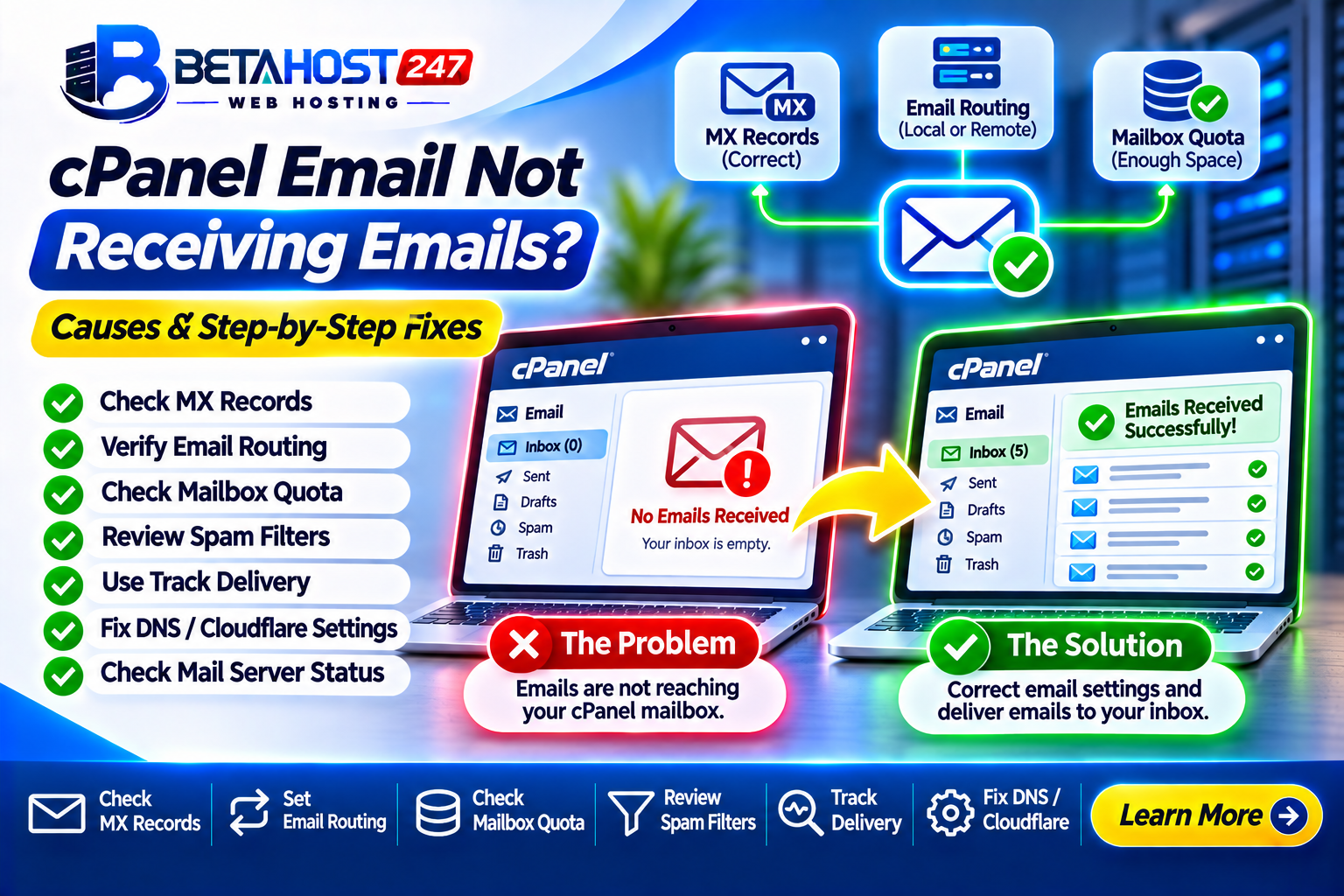
cPanel Email Not Receiving Emails? Common Causes and How to Fix Them
Are you experiencing a situation where your business email can send messages but cannot receive emails from customers, clients or other email providers?
Perhaps someone sends an email to your professional address, but nothing appears in your inbox. Sometimes the sender receives a delivery failure notification. Other times, the message appears to disappear without any obvious explanation.
This is a common problem with domain-based email accounts hosted on cPanel servers.
The issue may be caused by incorrect MX records, email routing settings, a full mailbox, DNS misconfiguration, spam filtering or a problem with the receiving mail server.
The good news is that most incoming email problems can be investigated systematically.
In this guide, we’ll explain why cPanel email accounts stop receiving messages, how to identify the cause and what you can do to restore normal email delivery.
Why Is My cPanel Email Not Receiving Emails?
A cPanel email account can stop receiving messages for several reasons.
Some of the most common causes include:
- Incorrect MX records
- Wrong email routing configuration
- Full mailbox storage
- Incorrect DNS records after changing nameservers
- Email filtering or spam settings
- Suspended or disabled email accounts
- Mail server configuration problems
- Incorrect email client settings
- Temporary server connection failures
- Problems with external email providers
The exact cause depends on how your domain’s email service is configured.
For example, a domain using Google Workspace requires different DNS settings from a domain receiving emails directly through its cPanel hosting server.
Before making changes, identify which provider is supposed to receive email for your domain.
1. Check Your Domain’s MX Records
MX stands for Mail Exchanger.
An MX record identifies the mail server responsible for receiving emails sent to your domain.
For example, if someone sends a message to:
The sender’s mail server normally performs a DNS lookup to find the domain’s MX records.
Those records tell it where to attempt delivery.
Example MX Configuration
A typical configuration might look like this:
| Record Type | Name | Priority | Destination |
|---|---|---|---|
| MX | example.com | 10 | mail.example.com |
| A | mail.example.com | Not applicable | 192.0.2.10 |
The IP address above is reserved for documentation. It isn’t a live mail server address.
Your actual configuration must use the mail server information provided by your hosting or email provider.
How to Check MX Records in cPanel
- Log in to cPanel.
- Navigate to Domains.
- Open Zone Editor.
- Find the affected domain.
- Click Manage.
- Review the MX records.
Make sure the MX destination points to the correct email service.
Important: If your domain uses Cloudflare or another external DNS provider, the cPanel Zone Editor may not control your public DNS records.
You must make DNS changes at the authoritative DNS provider.
How to Check MX Records Online
You can use:
These tools can help identify incorrect or missing MX records.
2. Fix Incorrect Email Routing in cPanel
Incorrect email routing is another common reason domain-based email accounts fail to receive messages.
cPanel provides an Email Routing feature that determines how the hosting server handles email for a domain.
Depending on your server configuration, you may see the following options.
Local Mail Exchanger
This setting tells the hosting server to handle email delivery locally for the domain.
It is generally appropriate when the domain’s mailboxes are hosted on that cPanel server.
Remote Mail Exchanger
This tells the server that email for the domain is handled by another mail system.
For example, if you use Google Workspace or Microsoft 365, remote routing is commonly required.
Backup Mail Exchanger
This is used when the server acts as a secondary mail exchanger rather than the primary destination.
It requires an appropriate mail architecture and shouldn’t be selected simply because you want a backup of your messages.
Automatically Detect Configuration
This option attempts to determine the appropriate routing configuration based on available DNS information.
However, automatic detection may not produce the intended result when public DNS is hosted externally or local zone records are outdated.
How to Change Email Routing
- Log in to cPanel.
- Navigate to Email.
- Open Email Routing.
- Select the affected domain.
- Review the current configuration.
- Choose the correct option for your email provider.
- Save the changes.
Warning: Don’t select Local Mail Exchanger or Remote Mail Exchanger without confirming where your domain’s mailboxes are actually hosted.
Incorrect routing can interrupt delivery.
3. Check Whether Your Email Mailbox Is Full
A full mailbox can prevent new messages from being accepted.
For example, if an email account has a storage quota of 1 GB and reaches that limit, the mail server may reject additional messages.
The sender may receive a bounce message indicating that the mailbox is full or has exceeded its quota.
How to Check Mailbox Storage in cPanel
- Log in to cPanel.
- Open Email Accounts.
- Locate the affected email address.
- Review its storage usage.
- Open Manage to inspect the mailbox quota, if available.
How to Fix a Full Mailbox
You can:
- Delete unnecessary emails.
- Empty the Trash folder.
- Remove unwanted messages with large attachments.
- Archive important emails to another location.
- Increase the mailbox quota if your hosting package allows it.
- Upgrade your hosting storage when necessary.
Remember that your hosting account may also have an overall disk quota.
Even if an individual mailbox has available space, an account-level storage restriction may interfere with email delivery.
4. Check DNS Records After Changing Nameservers
Have you recently connected your domain to Cloudflare, changed hosting providers or updated your nameservers?
If so, the email problem may be related to DNS.
Changing nameservers moves authoritative DNS management to another provider.
If the new DNS zone doesn’t contain the correct email records, incoming messages may stop reaching your mail server.
Important DNS Records to Check
| DNS Record | Purpose |
|---|---|
| MX | Identifies incoming mail servers |
| A / AAAA | Resolves mail server hostnames to IP addresses |
| SPF | Authorizes sending infrastructure |
| DKIM | Supports outgoing email authentication |
| DMARC | Defines authentication alignment and handling policy |
For incoming email failures, start with the MX records and the address records for their destination hostnames.
SPF, DKIM and DMARC are important for email authentication, but they generally aren’t the direct cause of a domain’s MX records pointing to the wrong receiving server.
What to Do
Check your domain’s authoritative nameservers and verify that the required records exist at the active DNS provider.
Don’t assume the records in cPanel are publicly active.
For additional guidance, read our article:
What Is DNS Propagation? Why Domain Changes Take Time and How to Check Them
5. Fix Email Problems When Using Cloudflare
Cloudflare is commonly used for DNS management, website security and content delivery.
However, incorrect DNS settings can interrupt email services.
The Most Common Cloudflare Email Mistake
A common mistake is enabling Cloudflare’s orange-cloud proxy for a hostname used by a conventional mail server.
Cloudflare’s standard HTTP proxy doesn’t proxy ordinary SMTP, IMAP or POP3 traffic.
For example, if your mail server is:
mail.example.com
Its address record should normally be configured as DNS only, represented by the grey cloud in Cloudflare.
Recommended Cloudflare DNS Configuration
For a domain whose mail is hosted on its cPanel server, a simplified configuration may look like this:
| Type | Name | Destination | Proxy Status |
|---|---|---|---|
| A | Mail server IP | DNS only | |
| MX | @ | mail.example.com | Not applicable |
| A | @ | Website server IP | Proxied, if suitable |
| CNAME | www | example.com | Proxied, if suitable |
This is an illustration, not a configuration to copy without verification.
Your actual records depend on your email provider.
How to Fix the Problem
- Log in to Cloudflare.
- Select your domain.
- Open DNS → Records.
- Find the hostname used by your MX record.
- Confirm it resolves to the correct mail server.
- Make sure the relevant mail hostname isn’t proxied through Cloudflare’s standard HTTP proxy.
- Save the changes.
Also verify that you haven’t accidentally deleted the MX record while moving DNS to Cloudflare.
Important: Cloudflare’s website CDN does not automatically provide email hosting.
6. Check Whether the Email Account Exists
Sometimes the problem is simpler than expected.
The recipient email address may not exist on the mail server.
For example, a customer might send a message to:
But the actual mailbox is:
Even a small spelling difference can result in a delivery failure.
How to Check
- Open cPanel.
- Navigate to Email Accounts.
- Search for the intended email address.
- Confirm that the mailbox exists.
- Verify that the address hasn’t been deleted or disabled.
If you’re using an email forwarder instead of a mailbox, review the forwarder configuration separately.
7. Check Spam Filters and Junk Folders
Not every missing email is actually missing.
Sometimes the mail server accepts the message but places it in a spam folder.
This may happen because of:
- Spam filtering rules
- Message reputation
- Sender authentication problems
- Custom email filters
- Suspicious attachments
- Blocked sender addresses
How to Check
- Log in to your cPanel webmail.
- Open the Spam or Junk folder.
- Search for the sender’s address.
- Review any available quarantine or filtering features.
- Check custom email filters.
If you find legitimate messages in spam, review the reason they were classified that way.
Avoid disabling all spam protection just to receive one message.
8. Review Email Filters in cPanel
cPanel allows users to create email filtering rules.
These rules can automatically process incoming messages based on sender, subject or other conditions.
A misconfigured filter may discard messages, redirect them or send them to an unexpected folder.
How to Review Email Filters
- Log in to cPanel.
- Open Email Filters.
- Select the affected email account.
- Review the existing rules.
- Identify any rule that discards, redirects or otherwise changes message delivery.
Also check Global Email Filters, if available.
Be particularly careful with rules that automatically discard messages.
A filter may cause emails to disappear without appearing in the inbox.
9. Use Track Delivery to Find Missing Emails
One of the most useful tools for diagnosing incoming email problems in cPanel is Track Delivery.
This feature can help you inspect email delivery events recorded by the hosting server.
How to Use Track Delivery
- Log in to cPanel.
- Navigate to Email.
- Open Track Delivery.
- Enter the recipient email address if the interface provides that filter.
- Run the report.
- Review the available delivery results.
Depending on your hosting environment, the results may indicate:
- Successful delivery
- Rejected messages
- Deferred delivery
- Routing problems
- Delivery errors
What if the Missing Email Doesn’t Appear?
If the message doesn’t appear in Track Delivery, it may never have reached your hosting server.
Possible reasons include:
- Incorrect MX records
- Delivery to another provider
- DNS configuration errors
- Connection problems
- Sender-side delivery failures
Track Delivery isn’t necessarily a complete record of every attempted email on the internet.
Its visibility depends on what the server actually received and what logging information is available.
10. Check Your Email Client Settings
Sometimes email is being received correctly by the hosting server, but it doesn’t appear in Outlook, Thunderbird or a mobile email application.
In this situation, the problem may involve the email client rather than incoming SMTP delivery.
Test Using Webmail
Open your cPanel email account through webmail.
If new messages appear in webmail but not in your email application, investigate the client configuration.
Common Email Client Problems
- Incorrect incoming mail hostname
- Wrong username or password
- Incorrect IMAP or POP3 port
- SSL/TLS configuration problems
- An expired or invalid certificate
- Synchronization errors
- Local filtering rules
Typical Secure Incoming Mail Ports
| Protocol | Common Port | Purpose |
|---|---|---|
| IMAP over TLS | 993 | Synchronizes mailbox folders |
| POP3 over TLS | 995 | Retrieves messages from the server |
The hostname and exact settings must match your hosting provider’s configuration.
You can find available settings through Email Accounts → Connect Devices in cPanel.
IMAP is generally preferable when you want messages synchronized across multiple devices.
11. Check Whether Your Domain or Hosting Account Is Suspended
An expired, suspended or misconfigured hosting service can interrupt email delivery.
Potential causes include:
- Hosting account suspension
- Expired domain registration
- Incorrect nameserver delegation
- Disabled mail service
- Server-level restrictions
- Account storage exhaustion
What to Check
Confirm that:
- Your domain registration is active.
- Your hosting service is active.
- The correct nameservers are configured.
- Your mailbox still exists.
- The receiving mail server is operational.
If your hosting service has been suspended, contact your provider to confirm whether email delivery is affected.
12. Check Whether the Receiving Mail Server Is Working
Even when DNS records are correct, the destination mail server may be unable to accept incoming connections.
Possible causes include:
- Mail service downtime
- Firewall restrictions
- Incorrect mail server configuration
- Port 25 connectivity problems
- Temporary server overload
- Storage or queue problems
These issues may require server administrator access.
For Server Administrators
On a cPanel/WHM server using Exim, investigate the mail service status, relevant logs and queue.
For example, an administrator with suitable privileges may use:
systemctl status eximTo inspect recent Exim log entries on a typical cPanel server:
tail -n 100 /var/log/exim_mainlogLog locations and commands may differ depending on the operating system and server configuration.
Do not restart mail services or modify firewall rules without understanding the consequences.
If you’re using ordinary shared hosting, contact your provider rather than attempting server-level changes.
13. Understand Email Bounce Messages
A bounce message is a delivery failure notification generated when an email cannot be delivered.
These messages can provide useful diagnostic information.
Common Email Errors
550 User Unknown
The recipient address may not exist or may not be recognized by the destination server.
552 Mailbox Full
The recipient mailbox or another relevant storage quota may have been exceeded.
421 Service Not Available
The receiving service may be temporarily unavailable or refusing connections.
Connection Timed Out
The sending server couldn’t complete a connection to the destination mail server within the allowed time.
Domain Not Found
The domain may have DNS or registration problems.
The exact meaning of a bounce depends on the complete SMTP response and the system generating it.
Don’t diagnose a delivery problem using only the numeric code when a more detailed error message is available.
14. Why Can I Send Emails but Not Receive Them?
Sending and receiving email use different parts of the mail system.
Outgoing email commonly involves an SMTP submission service or application.
Incoming email depends on the domain’s MX records and the receiving mail server.
Therefore, outgoing messages may work while incoming delivery fails.
For example:
- Your email client successfully sends through the hosting server.
- Your domain’s MX record still points to an old provider.
- External senders deliver messages to the old provider instead.
- Nothing arrives in your current cPanel mailbox.
In this case, changing the outgoing SMTP password won’t fix the problem.
You need to correct the incoming mail routing and DNS configuration.
15. How to Test Whether Your cPanel Email Is Receiving Messages
After making changes, perform a controlled delivery test.
Step 1: Send a Test Email
Use an external email account, such as Gmail or Outlook, to send a message to your domain-based address.
Step 2: Check Webmail
Log in to the affected mailbox using webmail.
Check both Inbox and Spam.
Step 3: Check Track Delivery
If the message doesn’t arrive, review the available delivery records.
Step 4: Check the Sender’s Mailbox
Look for a bounce notification or delivery error.
Some failures are temporary, so the sender’s mail system may retry before issuing a final failure notice.
Step 5: Verify DNS
Confirm that the public MX records identify the correct mail service.
Step 6: Test Again
After correcting the underlying problem, send another test message.
Don’t assume that messages previously rejected or delivered to the wrong provider will automatically appear in the correct mailbox.
How to Prevent cPanel Email Delivery Problems
You can reduce the likelihood of future email disruptions by following these practices:
- Keep your domain registration active.
- Verify MX records whenever you change DNS providers.
- Review email routing after migrating hosting accounts.
- Keep mail-related hostnames correctly configured.
- Monitor mailbox and account storage usage.
- Review email filters periodically.
- Maintain suitable spam protection.
- Test incoming and outgoing email after server migrations.
- Keep email client settings up to date.
- Contact your hosting provider when server-level delivery problems occur.
If you’re moving your website to another hosting provider, plan the email migration separately.
Moving website files doesn’t automatically transfer email accounts, messages, filters or routing settings.
Email Hosting and Web Hosting at Beta Host Limited
Beta Host Limited provides web hosting services with cPanel-based management features on applicable packages.
Customers can use the available control panel tools to manage domain-based email accounts, review mailbox storage, inspect email routing and troubleshoot delivery problems.
If you’re looking for hosting for your business website and professional email accounts, explore our available services.
Shared Web Hosting
Suitable for websites and business applications that fit within the selected hosting package’s resources and features.
Reseller Hosting
For businesses and developers who want to manage hosting accounts for multiple customers.
Domain Registration
Register a domain name for your website and professional email identity.
Before purchasing, review the current hosting package features, email limits and applicable service policies.
For large-scale email delivery or specialized business email requirements, a dedicated email provider may be more suitable.
Frequently Asked Questions
Why is my cPanel email not receiving emails?
Common causes include incorrect MX records, wrong email routing, full mailbox storage, spam filters, DNS problems or mail server failures.
How do I fix incoming email problems in cPanel?
Start by checking MX records, email routing, mailbox quotas and Track Delivery. Then investigate spam filters and server-related errors.
Why can I send emails but not receive them?
Outgoing and incoming email use different configurations. Your outgoing SMTP service may work while incoming MX records or mail routing are incorrect.
How do I check MX records in cPanel?
Open Zone Editor and review the MX records. If your domain uses external DNS, inspect the records at the authoritative DNS provider.
Should cPanel email routing be local or remote?
Use the configuration appropriate to where your domain’s mailboxes are hosted. Local routing is generally used for mailboxes on the cPanel server, while remote routing is used when another provider receives the domain’s email.
Can Cloudflare stop my email from working?
Incorrect Cloudflare DNS settings can interrupt email. Verify your MX records and ensure that conventional mail server hostnames aren’t proxied through Cloudflare’s standard HTTP proxy.
What happens when my email mailbox is full?
The mail server may reject new messages until sufficient storage becomes available or the quota is increased.
How do I know whether an email reached my server?
Use cPanel Track Delivery, where available, to review recorded mail delivery events.
Why do emails appear in webmail but not Outlook?
This usually points toward an email client configuration or synchronization problem. Check IMAP settings, authentication and local filtering rules.
Will changing nameservers affect my email?
It can. If the new DNS provider doesn’t contain the correct MX and related records, incoming email delivery may fail.
Can SPF and DKIM fix incoming email problems?
SPF and DKIM primarily help authenticate outgoing messages. They don’t replace correct MX records or repair a receiving server that is unavailable.
Should I delete and recreate my email account?
Not as an initial troubleshooting step. Deleting a mailbox may result in loss of stored messages. Investigate DNS, routing, quotas and delivery logs first.
Final Thoughts
When your cPanel email account stops receiving messages, the problem may involve DNS, mailbox storage, routing configuration, spam filters or the receiving mail server.
The best approach is to identify where the delivery process is failing.
Start with your MX records and email routing settings. Then check mailbox quotas, filters and Track Delivery.
If you’re using Cloudflare, confirm that your mail records are configured correctly and that mail server hostnames aren’t routed through the standard website proxy.
With proper DNS configuration and regular monitoring, you can reduce unexpected email interruptions and keep your business communication working reliably.
Need reliable hosting for your business website and professional email accounts? Explore Beta Host Limited’s Web Hosting Services or contact our technical support team for assistance.