
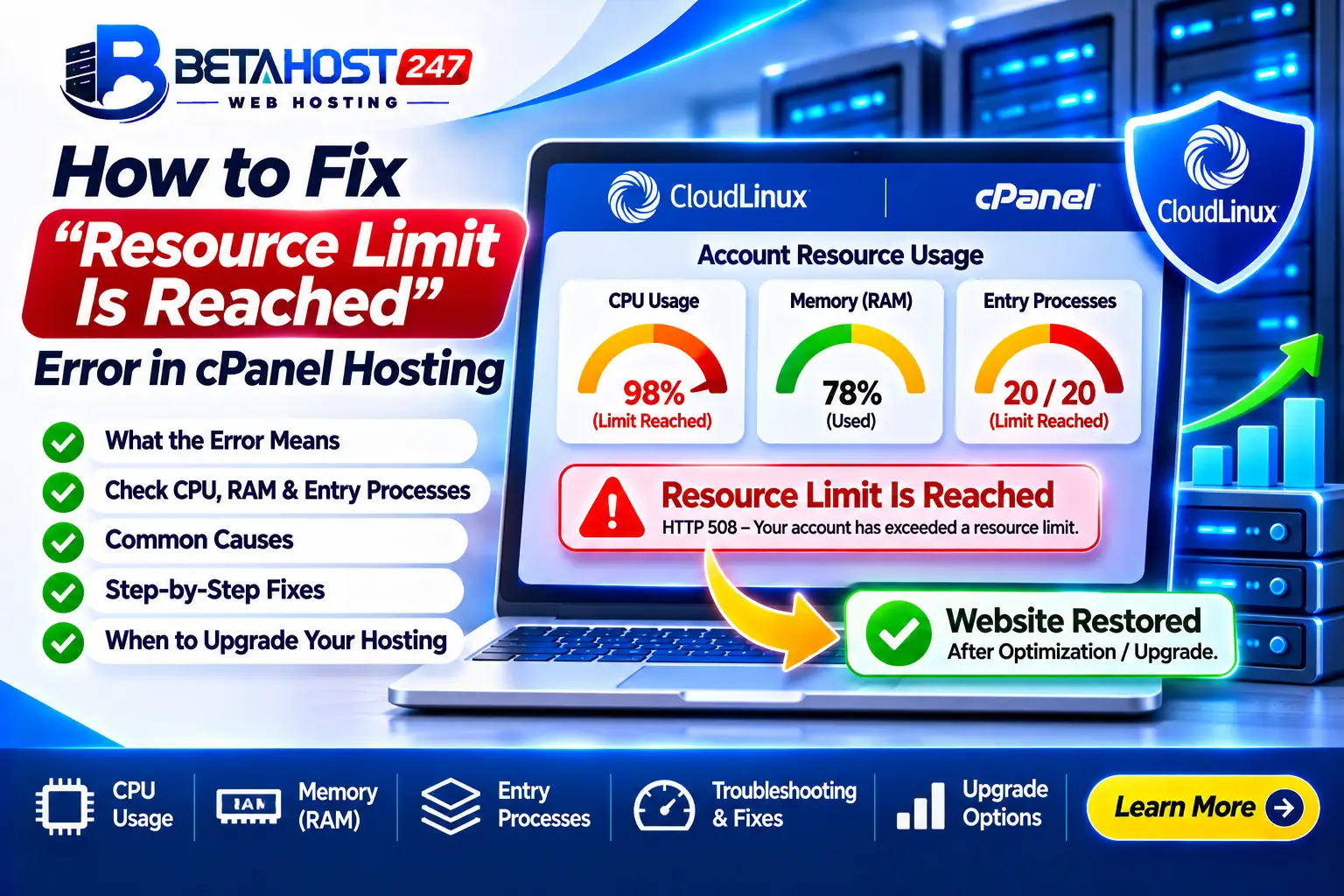
How to Fix “Resource Limit Is Reached” Error in cPanel Hosting
Have you ever visited your website and received the message “Resource Limit Is Reached”?
Sometimes the website works normally, but after several visitors open it or a background process starts running, the error suddenly appears.
This can be frustrating, particularly when your hosting account still has available disk space and bandwidth.
The problem often relates to server resource restrictions rather than storage capacity.
In shared hosting environments using CloudLinux, each hosting account may have limits on CPU, physical memory, entry processes, I/O and other resources.
When an account exceeds certain limits, requests may slow down, fail or display an error.
In this guide, we’ll explain what the Resource Limit Is Reached error means, what causes it and how to troubleshoot it using cPanel.
What Does “Resource Limit Is Reached” Mean?
The Resource Limit Is Reached message generally indicates that a hosting account has exceeded a resource restriction enforced by the hosting environment.
Some CloudLinux-based hosting environments display this message alongside HTTP 508 Resource Limit Is Reached.
HTTP 508 is also a standardized status code for Loop Detected, so the meaning depends on the server and the response being returned.
In CloudLinux hosting, the message may be associated with limits such as:
- Entry processes
- CPU usage
- Physical memory
- I/O throughput
- I/O operations
- Process counts
Different limits can produce different symptoms and errors.
Not every resource limit results in an HTTP 508 response.
Why Do Shared Hosting Providers Set Resource Limits?
Shared hosting allows multiple customers to use resources from the same server.
Without account-level controls, a single website could consume excessive processing power or memory and affect other customers.
Resource limits help hosting providers allocate capacity and manage workloads.
For example, a provider may restrict the CPU resources available to an account.
The exact limit depends on the hosting package and server configuration.
A website that requires more resources than its package provides may experience performance problems even when plenty of disk space remains available.
Understanding CloudLinux Resource Limits
CloudLinux is commonly used in shared hosting environments to isolate and control account resource consumption.
Its Lightweight Virtual Environment (LVE) technology can enforce limits for individual hosting accounts.
Here are some important resource measurements.
| Resource | Meaning | Possible Effect When Limited |
|---|---|---|
| CPU | Processing capacity | Slower request processing |
| Physical Memory | RAM used by account processes | Processes may fail or be terminated |
| Entry Processes | Concurrent requests entering the account’s LVE | New requests may be rejected |
| I/O | Disk throughput | Slower file and database-related operations |
| IOPS | Disk input/output operations per second | Storage operations may be throttled |
| Number of Processes | Processes or threads counted by the environment | New processes may fail to start |
The exact behavior depends on the server configuration.
What Causes the Resource Limit Is Reached Error?
Several conditions can trigger resource-related problems.
1. High Website Traffic
A sudden increase in visitors can create more simultaneous requests.
If your website needs substantial server processing for every request, a traffic spike may exhaust available resources.
However, traffic volume alone doesn’t determine resource consumption.
A well-optimized website can often handle more requests than an inefficient application using the same hosting resources.
2. Heavy PHP Scripts
Poorly optimized PHP applications can consume significant CPU time and memory.
Examples include:
- Expensive database queries
- Large report generation
- Repeated API requests
- Inefficient loops
- Complex data processing
If a script runs frequently or takes a long time to complete, resource usage may increase.
3. Too Many Concurrent Requests
Entry process limits can be reached when too many requests are being processed simultaneously.
For example, a website with slow PHP execution may keep requests active for longer.
As additional requests arrive, the account can reach its configured entry process limit.
4. Excessive Cron Jobs
Cron jobs are useful for scheduled tasks, but poorly configured jobs can consume unnecessary resources.
For example, running a resource-intensive script every minute may create overlapping executions if the previous run hasn’t finished.
5. Inefficient Database Queries
Database queries that scan large tables or lack appropriate indexes can increase processing time.
This may also cause web requests to remain active longer, contributing to resource pressure.
6. Automated Bot Traffic
Search engine crawlers, monitoring services and malicious bots can generate repeated requests.
Some automated traffic is legitimate.
However, excessive requests to dynamic pages may consume significant server resources.
7. Malware or Compromised Scripts
A compromised website may execute unauthorized scripts or generate unexpected background activity.
This can result in abnormal CPU usage, memory consumption or outbound requests.
8. Insufficient Hosting Resources
Sometimes the website is functioning correctly but genuinely requires more resources than the selected package provides.
In that situation, optimization may help, but a package upgrade or migration may be necessary.
How to Check Resource Usage in cPanel
Many CloudLinux hosting environments provide a resource usage interface inside cPanel.
Step 1: Log In to cPanel
Open your hosting control panel.
Step 2: Find Resource Usage
Look for an interface named:
Resource Usage
It may appear under Metrics or another section depending on your provider’s configuration.
Step 3: Review the Current Status
The interface may display messages such as:
- Your site has had no issues within the past 24 hours.
- Your site has been limited within the past 24 hours.
The wording can vary.
Step 4: Open Usage Details
Select the available details or statistics option.
Review the resource graphs and fault counters.
Pay particular attention to:
- CPU usage
- Physical memory
- Entry processes
- I/O
- Process limits
Step 5: Identify When Limits Were Reached
Compare the recorded resource usage with the times your website experienced errors.
If resource faults consistently occur during a scheduled task or traffic spike, that information can help identify the cause.
How to Fix Resource Limit Is Reached Errors
The following troubleshooting steps can help you identify and reduce excessive resource usage.
1. Identify Which Resource Is Reaching Its Limit
Don’t assume every Resource Limit Is Reached error is caused by CPU usage.
Check the resource usage interface first.
For example:
- High CPU usage suggests processing pressure.
- Entry process faults suggest too many concurrent active requests.
- Memory faults suggest processes may be exceeding available RAM.
- I/O throttling suggests storage throughput restrictions.
The solution depends on the actual bottleneck.
2. Review Your Website’s Error Logs
Error logs can reveal problems with PHP scripts, application configuration or database connections.
In cPanel, look for the Errors interface where available.
You can also review application-specific logs.
Common problems include:
- PHP fatal errors
- Memory exhaustion
- Database connection failures
- Script timeouts
- Missing dependencies
Not every resource limit event will appear in the application error log.
CloudLinux resource statistics and server-level logs may provide additional information.
3. Optimize Heavy PHP Scripts
If your website runs custom PHP applications, review scripts that consume excessive resources.
Consider:
- Reducing unnecessary database queries
- Avoiding repeated calculations
- Processing large tasks in smaller batches
- Adding appropriate caching
- Removing unnecessary background operations
- Reviewing inefficient loops
For complex applications, profiling tools can help identify expensive operations.
4. Review Cron Job Frequency
Open cPanel and locate Cron Jobs.
Review the scheduled commands.
Ask yourself:
- Does this task need to run every minute?
- Does it take longer than its scheduling interval?
- Could multiple copies run simultaneously?
- Is it processing more data than necessary?
For example, a task that takes five minutes shouldn’t normally be scheduled every minute without appropriate concurrency controls.
Adjust the schedule based on the application’s actual requirements.
Avoid disabling essential application tasks without understanding their purpose.
5. Investigate Excessive Bot Requests
Review available access logs and traffic reports.
Look for unusual patterns such as:
- Repeated requests to one endpoint
- Large numbers of requests from a small group of sources
- Unexpected traffic spikes
- Repeated failed login attempts
If necessary, configure appropriate rate limiting or bot protection through a supported security service.
Be careful not to block legitimate visitors or search engine crawlers.
6. Optimize Database Performance
Slow database operations can increase the time required to generate pages.
Possible improvements include:
- Adding appropriate indexes
- Optimizing expensive queries
- Removing unnecessary repeated queries
- Reviewing application database connections
- Avoiding oversized result sets
Database changes should be tested carefully.
Create a backup before making structural changes.
7. Check for Malware
Unexpected resource usage may indicate a compromised application.
Review:
- Recently modified files
- Unknown scripts
- Suspicious scheduled tasks
- Unrecognized administrator accounts
- Unusual outbound connections
- Unexpected file changes
Use available malware scanning tools where appropriate.
If you suspect a compromise, secure the account and investigate before simply deleting unfamiliar files.
8. Enable Appropriate Caching
Caching can reduce the number of requests that require expensive application processing.
Depending on your hosting environment, available options may include:
- Browser caching
- Server-side page caching
- Application caching
- CDN caching
- Object caching
However, caching must be configured correctly.
Sensitive pages, user-specific content and certain dynamic responses may require special handling.
For websites using LiteSpeed, a compatible caching solution may help reduce PHP processing.
Caching doesn’t fix every performance problem, but it can reduce unnecessary work.
9. Reduce Unnecessary Background Tasks
Some applications perform periodic operations such as:
- Generating reports
- Processing images
- Sending notifications
- Importing data
- Running scheduled maintenance
- Synchronizing external services
Review these tasks and determine whether they can be scheduled more efficiently.
Where supported, background queues can help distribute processing work.
10. Upgrade Your Hosting Package
If your website consistently reaches resource limits despite appropriate optimization, it may have outgrown the selected hosting package.
Before upgrading, confirm:
- Which resource is insufficient
- Whether a higher package provides more of that resource
- Whether your application requires custom server configuration
- Whether the workload would benefit from VPS hosting
An upgrade should address the actual resource bottleneck rather than simply increasing unrelated allowances.
How to Fix Entry Process Limit Errors
Entry processes are particularly important in CloudLinux shared hosting.
An entry process represents a request entering the account’s LVE.
A request may remain active while PHP executes or the application waits for processing to complete.
When the configured limit is reached, additional requests may fail.
Common Causes
- Slow PHP applications
- Too many simultaneous dynamic requests
- Long-running requests
- Traffic spikes
- Excessive automated requests
Recommended Solutions
- Identify slow application endpoints.
- Review entry process fault statistics.
- Optimize database queries.
- Reduce unnecessary background requests.
- Configure suitable caching.
- Investigate excessive bot traffic.
- Upgrade when genuine concurrency requirements exceed the package.
Increasing disk space or bandwidth alone won’t necessarily resolve an entry process problem.
How to Fix High CPU Usage in Shared Hosting
CPU limits control how much processing capacity an account can use.
High CPU consumption may occur because of:
- Expensive application code
- Database processing
- High traffic
- Background scripts
- Scheduled tasks
- Compromised applications
In some environments, CPU usage above the configured limit is throttled rather than immediately producing an error.
This can make websites slower.
What You Should Do
Review resource statistics, identify expensive processes and optimize the application.
If the website requires more processing power, consider a package with higher CPU allocations.
Don’t assume that deleting files will resolve a CPU bottleneck.
How to Fix Physical Memory Limit Problems
Physical memory limits restrict the RAM available to an account’s processes.
When an application exceeds available memory, operations may fail.
Possible symptoms include:
- PHP memory errors
- Failed background tasks
- Intermittent server errors
- Processes terminating unexpectedly
Recommended Steps
- Review memory fault statistics.
- Identify memory-intensive scripts.
- Check application logs.
- Reduce unnecessary memory consumption.
- Process large datasets in smaller batches.
- Review application configuration.
- Consider additional memory resources if required.
Increasing PHP’s memory_limit setting doesn’t automatically increase the hosting account’s physical memory allocation.
Both limits must be considered separately.
Can Cloudflare Fix Resource Limit Errors?
Cloudflare can help reduce some types of traffic reaching your origin server.
For example, eligible cached content may be served from Cloudflare’s edge rather than requiring repeated requests to the hosting server.
Security controls can also help manage certain unwanted automated requests.
However, Cloudflare won’t automatically fix:
- Inefficient PHP scripts
- Heavy database queries
- Excessive cron jobs
- Memory-intensive background tasks
- Uncached application requests
If the underlying application is inefficient, the problem may continue even after enabling Cloudflare.
Can Resource Limits Affect SEO?
Resource limits can indirectly affect search visibility when they cause persistent website performance or availability problems.
For example, repeated server errors may prevent visitors and search engine crawlers from accessing pages.
Slow responses can also affect user experience.
However, a temporary resource limit event doesn’t automatically mean that Google will reduce your rankings.
The impact depends on severity, frequency and duration.
Monitor your website’s availability and address recurring errors.
Resource Limit Is Reached vs Bandwidth Limit Exceeded
These errors describe different hosting problems.
| Problem | Main Cause |
|---|---|
| Resource Limit Is Reached | Account exceeds a configured processing or concurrency-related limit |
| Bandwidth Limit Exceeded | Account exceeds an enforced data-transfer allowance |
| Disk Quota Exceeded | Account reaches its storage quota |
| Inode Limit Reached | Account reaches a file-count or inode quota |
Each problem requires a different solution.
For additional information, read our guides:
What Is Web Hosting Bandwidth? How to Check Usage and Avoid Bandwidth Exceeded Errors
What Are Inodes in Web Hosting? How to Check and Reduce Inode Usage in cPanel
When Should You Contact Your Hosting Provider?
Contact your hosting provider if:
- Your website repeatedly displays resource limit errors.
- You cannot identify the affected resource.
- Resource usage statistics aren’t available.
- Your application has stopped working.
- Resource faults occur without an obvious traffic increase.
- You need help determining whether your package is sufficient.
When submitting a support ticket, provide:
- Your domain name
- The exact error message
- The approximate time of the problem
- Relevant screenshots
- Resource usage statistics
- Recent application changes
Avoid sharing passwords or sensitive credentials.
Choosing a Hosting Package With Suitable Resources
Different websites have different processing requirements.
A small static website may require relatively few server resources.
A busy ecommerce application, customer portal or database-driven platform may require more CPU, memory and concurrent processing capacity.
Before selecting a hosting package, review:
- CPU allocation
- Physical memory
- Entry process limits
- Storage capacity
- Bandwidth allowance
- Inode limits
- Application compatibility
- Upgrade options
Beta Host Limited provides several hosting solutions for different workloads.
Shared Web Hosting
For websites that fit within the selected package’s resource allocations.
WordPress Hosting
For websites built using the WordPress platform.
VPS Hosting
For applications requiring greater server control and allocated virtual resources.
Before ordering, compare your application’s requirements with the current package specifications.
Frequently Asked Questions
What does Resource Limit Is Reached mean?
It generally indicates that a hosting account has exceeded a resource restriction, such as an entry process or memory limit, depending on the hosting environment.
What is HTTP 508 in cPanel hosting?
Some CloudLinux-based hosting systems use HTTP 508 for Resource Limit Is Reached errors. The standardized HTTP 508 status also has a separate meaning, Loop Detected, so the response context matters.
How do I check resource usage in cPanel?
Open the Resource Usage interface, if available, and review the current statistics and recorded resource faults.
Can high CPU usage cause website errors?
Yes. Excessive CPU demand can slow down application processing, and related resource limits may contribute to request failures.
What are entry processes in CloudLinux?
Entry processes represent requests entering an account’s LVE. Reaching the configured concurrency limit can cause additional requests to fail.
Can increasing PHP memory fix resource limit errors?
Only in certain situations. Increasing PHP’s memory limit doesn’t increase the account’s CloudLinux physical memory allocation.
Can Cloudflare prevent resource limit errors?
Cloudflare may reduce some origin requests through caching and traffic controls, but it cannot resolve every server-side resource problem.
Will upgrading hosting fix resource limit errors?
It may help if the application genuinely requires more resources. However, inefficient scripts, malware or excessive background tasks should also be investigated.
Does bandwidth affect CPU usage?
Bandwidth and CPU are different resources. Some traffic patterns can increase both data transfer and processing demand, but high bandwidth usage doesn’t automatically mean high CPU usage.
Can resource limit errors affect website visitors?
Yes. Visitors may experience slow pages, failed requests or temporary errors when account limits are enforced.
Final Thoughts
The Resource Limit Is Reached error is a sign that your website may be exceeding one or more hosting resource restrictions.
The most effective solution is to identify the affected resource before making changes.
Use cPanel’s Resource Usage interface to investigate CPU, memory, entry processes and other relevant limits.
Then optimize the application, review background tasks, investigate unusual traffic and consider upgrading when necessary.
A properly configured website and a hosting package matched to its workload can help reduce recurring resource problems.
Need a hosting package with suitable resources for your website? Explore Beta Host Limited’s Web Hosting Services and compare the available options.